Day 5: How to Create Custom CLI Command
Welcome to Day 5 of the Magento Advent Calendar! Today I’ll show you how to create a custom CLI command in Magento 2. We’ll generate a console command that you can run directly from the terminal, and I’ll walk you through everything step-by-step.
Inside the module MageMastery/Module, we already have the basic structure:
app/code/MageMastery/Module/
│── registration.php
└── etc/module.xml
In Magento 2, CLI commands are registered using dependency injection.
We need to map our command name to a command class.
The etc/di.xml configuration file:
<type name="Magento\Framework\Console\CommandListInterface">
    <arguments>
        <argument name="commands" xsi:type="array">
            <item name="mage_mastery:greet" xsi:type="object">MageMastery\Module\Console\Command\GreetCommand</item>
        </argument>
    </arguments>
</type>
Now let’s add the actual console command class.
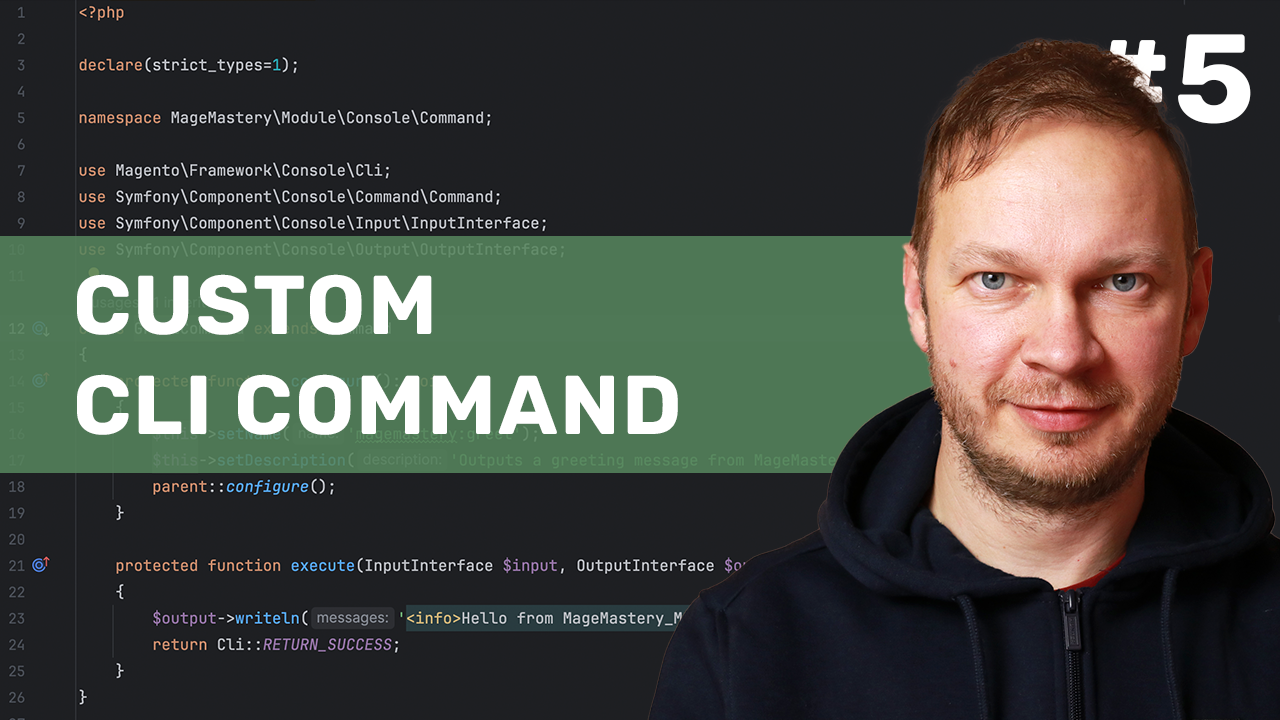
It extends the base Symfony Command class, and all the logic goes into execute().
<?php

declare(strict_types=1);

namespace MageMastery\Module\Console\Command;

use Magento\Framework\Console\Cli;
use Symfony\Component\Console\Command\Command;
use Symfony\Component\Console\Input\InputInterface;
use Symfony\Component\Console\Output\OutputInterface;

class GreetCommand extends Command
{
    protected function configure(): void
    {
        $this->setName('magemastery:greet');
        $this->setDescription('Outputs a greeting message from MageMastery Module');
        parent::configure();
    }

    protected function execute(InputInterface $input, OutputInterface $output): int
    {
        $output->writeln('<info>Hello from MageMastery_Module CLI command!</info>');
        return Cli::RETURN_SUCCESS;
    }
}
Run the following commands:
php bin/magento setup:upgrade
php bin/magento mm:greet
And that’s it! The new command appears in the CLI list and runs successfully.
I’ve recorded a video for Day 5 as part of the Magento Advent Calendar, please make sure to check it out.